Google’s own research has shown that as page load time goes from 1 second to 3 seconds, the probability of a bounce jumps by 32%. Images are usually the single biggest reason a page crosses that line. On most websites, images account for more than half of total page weight, and unlike a bloated JavaScript bundle, nobody on the marketing team notices until rankings start slipping.
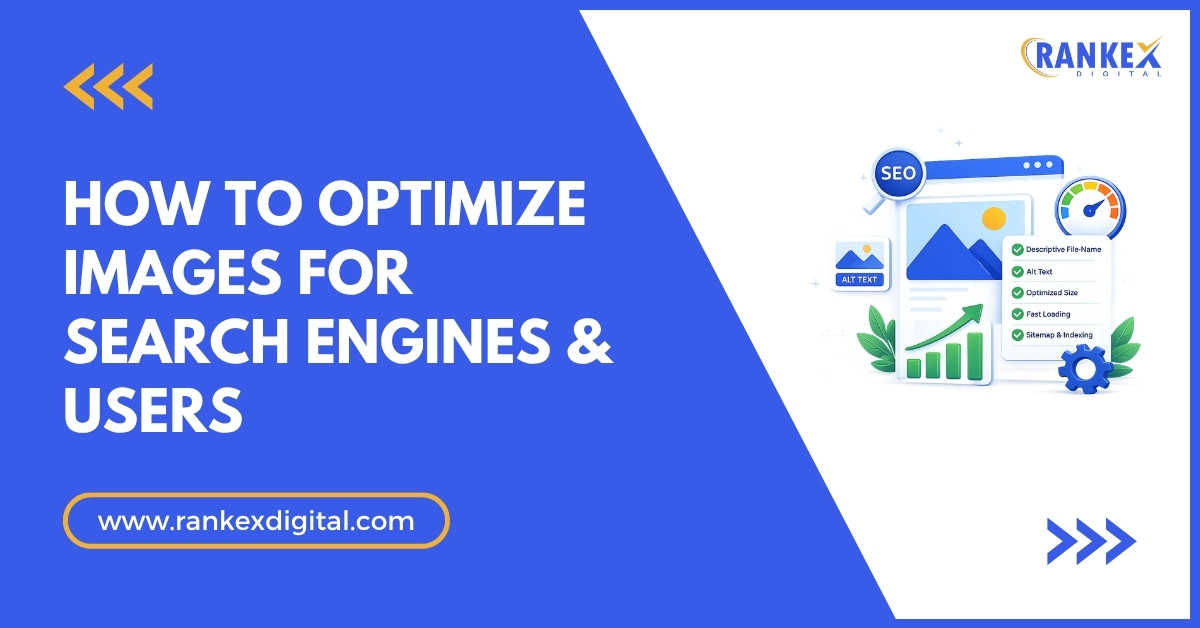
Image SEO is not just alt text and file size. It is a system: format choice, compression, markup, layout stability, and discoverability, all working together so Google can crawl the image, understand what it shows, and serve it without slowing the page down. Get the primary keyword for a page indexed but ignore the images sitting inside it, and you leave ranking signals and Google Images traffic on the table.
This guide covers exactly how to optimize images for SEO, with the specific settings, tools, and thresholds that separate a page that merely has images from one where the images are pulling their weight.
In this blog
- 1. TL;DR: Quick Summary
- 2. Why Image SEO Actually Moves Rankings
- 3. Choosing the Right Image Format and Compression Strategy
- 4. Alt Text, File Names, and Captions That Actually Rank
- 5. Responsive Images and Lazy Loading Without Breaking Core Web Vitals
- 6. Structured Data and Image Sitemaps for Visibility in Google Images and AI Overviews
- 7. Common Image SEO Mistakes That Quietly Kill Rankings
- 8. The Bottom Line
- 9. Frequently Asked Questions
TL;DR: Quick Summary
- Serve images in WebP or AVIF instead of JPEG or PNG; AVIF files run 30 to 50% smaller than JPEG at equivalent visual quality, and WebP typically saves 25 to 35%.
- Set explicit
widthandheightattributes on every image tag. This is the single most common cause of Cumulative Layout Shift, and CLS is a direct Core Web Vitals ranking factor. - Write alt text that describes what the image shows in plain language, under 125 characters, without keyword stuffing. Screen readers read it aloud verbatim.
- Rename image files before upload using descriptive, hyphenated filenames tied to the page’s topic, not
IMG_4821.jpg. - Use
srcsetandsizesto serve differently sized images to different devices instead of forcing a mobile phone to download a 2400px desktop banner. - Native lazy loading (
loading="lazy") should apply to every image below the fold, but never to the largest above-the-fold image, since that will delay your Largest Contentful Paint score.
Why Image SEO Actually Moves Rankings
Image optimization matters for two separate reasons that most guides blur together: page experience signals and image search discoverability. Both are ranking inputs, and they require different work.
The Core Web Vitals Connection
Google’s Core Web Vitals include Largest Contentful Paint (LCP), which measures how fast the biggest visible element on the page renders, and Cumulative Layout Shift (CLS), which measures how much content jumps around while loading. On the majority of websites, the LCP element is an image: a hero banner, a product photo, a featured blog image.
Here is the part most guides skip: LCP and CLS are not solved by the same fix. Compressing an image improves LCP because there is less data to download. It does nothing for CLS. CLS gets caused when the browser does not know an image’s dimensions ahead of time, renders the surrounding text first, then shoves everything down once the image loads. The fix for CLS is declaring width and height (or an aspect-ratio in CSS) on the image tag itself, so the browser reserves the space before the image arrives, regardless of how small the file is.
A page can have perfectly compressed images and still fail CLS, and it can pass CLS with unoptimized images that are simply sized correctly in the markup. Treat these as two separate checklist items, not one.
Google Images Is a Real Traffic Channel
Google Images is not a side feature. It is a distinct search surface with its own ranking factors, and for e-commerce, recipe, DIY, and travel content, it regularly drives more sessions than people expect once they check Google Search Console’s Performance report filtered to the “Image” search type. Product pages that rank for competitive text queries often rank far better in Images because there is less optimized competition there.
The mechanism is straightforward: Google needs machine-readable signals to understand an image, since it cannot “see” a photo the way a person can (image recognition helps, but text signals still dominate ranking). Alt text, surrounding page copy, file names, captions, and structured data are what tell Google what the image depicts and why it matters on that page.
For businesses running ecommerce SEO where product photography is the primary content asset, image optimization is not a secondary tactic. It is often the fastest lever available, since product images are usually large, unoptimized, and completely un-annotated on most Shopify and WooCommerce stores.
Choosing the Right Image Format and Compression Strategy
Format choice is the highest-leverage decision in image SEO, and it is also the one most business owners get wrong by default because their CMS auto-uploads whatever format the camera or design tool exported.
JPEG, PNG, WebP, and AVIF: What Each Format Is Actually For
JPEG uses lossy compression and works well for photographs with lots of color variation, but it does not support transparency and starts showing visible artifacts (blocky edges, color banding) once compression gets aggressive.
PNG uses lossless compression, which means no quality loss, but the tradeoff is file size. A PNG of a photograph can be 5 to 10 times larger than the same image saved as JPEG. PNG’s real use case is graphics with flat colors, sharp edges, or transparency: logos, icons, screenshots with text.
WebP, developed by Google, handles both lossy and lossless compression in one format and supports transparency. On a typical product photo, WebP produces files 25 to 35% smaller than JPEG at the same visual quality, based on Google’s own comparisons. Browser support is now above 97% globally (per caniuse.com), which is high enough that WebP can be the default format for nearly any site.
AVIF is newer and compresses even further, often 30 to 50% smaller than JPEG and meaningfully smaller than WebP on complex images, according to compression benchmarks from Netflix and Cloudinary. The tradeoff is encoding time (AVIF takes longer to compress) and slightly lower support in older browsers and some image editing software. For 2026, AVIF is worth using as the primary format with WebP as a fallback for the small percentage of browsers that do not yet support it.
SVG is not a photo format at all. It is vector-based, meaning it stores mathematical shapes instead of pixels, which makes it ideal for logos, icons, and simple illustrations that need to scale to any size without pixelation, at a fraction of the file size of a PNG equivalent.
Building a Format Decision Tree
Here is the actual decision most sites should make, rather than a vague “use modern formats” recommendation:
- Product and blog photography: AVIF primary, WebP fallback, JPEG as the legacy fallback for very old browsers or email clients that render the image.
- Logos, icons, illustrations with flat color: SVG. Never PNG or JPEG for a logo.
- Screenshots with text: PNG if small, WebP lossless if the file needs to stay under a size budget.
- Animated graphics: WebP supports animation and replaces GIF at roughly 30% of the file size for the same result.
Compression Settings That Preserve Visual Quality
The mistake most people make at this step is compressing everything to the same aggressive setting and introducing visible artifacts on images that mattered, like hero banners viewed at full width. The fix is a quality budget based on where the image appears.
Using Squoosh (Google’s free browser-based compression tool) or ShortPixel, a practical quality target is 75 to 85 out of 100 for JPEG and WebP on hero images and product photography, and 60 to 70 for thumbnails, background decoration, or images that appear small in the layout. Below 60, JPEG artifacts become visible around edges and text overlays even to non-technical viewers.
For bulk compression across an existing image library, ShortPixel and Imagify both offer WordPress plugins that auto-convert to WebP or AVIF on upload and can reprocess an entire media library in the background. TinyPNG’s API does the same for custom-built sites, with a simple REST endpoint that accepts an image and returns a compressed version, making it straightforward to build into a build pipeline or CMS upload hook.
One detail almost every guide skips: strip EXIF metadata during compression. Camera-shot images carry GPS coordinates, camera model, and timestamp data embedded in the file, none of which Google uses for ranking, and all of which adds unnecessary file weight. Squoosh and ShortPixel both strip this by default; verify the setting is on if using a custom compression script.
Alt Text, File Names, and Captions That Actually Rank
This is the section most guides treat as a checkbox: “add alt text, use descriptive filenames.” The mechanics of doing it well, and the mistakes that make it backfire, deserve more depth.
Writing Alt Text Google and Screen Readers Both Respect
Alt text serves two audiences at once: Google’s image crawler and screen reader users who cannot see the image at all. A screen reader reads the alt attribute aloud exactly as written, which means the test for good alt text is simple: read it out loud, and ask whether it describes the image the way a person would describe it to someone on the phone.
The formula that works: [subject] + [relevant detail] + [context if it adds meaning], kept under 125 characters, since that is roughly where most screen readers cut off before moving to the next element.
A weak example: alt="shoes". A stuffed example that actively hurts: alt="running shoes best running shoes 2026 buy running shoes online". A correct example: alt="Men's trail running shoe in orange and grey, side profile view".
Google’s own documentation on image best practices states that alt text should describe the image accurately and be relevant to the content on the page, explicitly warning against keyword stuffing. Google’s John Mueller has said in Search Central discussions that alt text stuffed with keywords can be treated as a spam signal rather than a ranking boost, which reverses the intended effect entirely.
Decorative images, ones that add nothing informational (a background texture, a divider graphic), should use an empty alt attribute (alt=""), not a description. This tells screen readers to skip the element entirely rather than reading out a meaningless description, and it is the correct accessibility practice per WCAG guidelines.
File Naming: The Step Almost Everyone Skips
CMS platforms and cameras generate filenames like IMG_4821.jpg or Screenshot 2026-03-14 at 10.22.png, and most people upload the file as-is because renaming feels like an extra step for no visible benefit. But the filename is itself a ranking signal Google reads before the image ever loads, since it is available in the HTML before any image recognition happens.
Rename the file before upload to something descriptive and hyphenated, matching how the primary keyword or topic would naturally read: orange-mens-trail-running-shoe-side.jpg instead of IMG_4821.jpg. This single habit, done consistently across a media library, compounds over hundreds of images into a meaningfully stronger topical signal for Google Images.
Captions and Surrounding Text Matter More Than Most Realize
Google’s image ranking systems weigh the text directly surrounding an image, including any visible caption, more heavily than the alt attribute alone in many cases, because caption text is what a human reader actually sees and engages with. A product image with no caption and thin surrounding copy gives Google far less to work with than the same image sitting beneath a two-sentence caption explaining what it shows and why it matters.
For blog content, this means writing a real caption under embedded images rather than leaving them bare, especially for images that illustrate a specific step, data point, or comparison the reader needs to understand.
Responsive Images and Lazy Loading Without Breaking Core Web Vitals
Serving the correct image size to the correct device is where most of the wasted bandwidth on the modern web actually happens, and it is also where lazy loading, done carelessly, actively hurts the metric it is supposed to help.
Why a Single Image File Is Almost Always Wrong
A desktop hero banner might need to display at 1920px wide. That exact same image, served to a phone with a 390px-wide screen, still downloads at full 1920px resolution unless the markup tells the browser otherwise, because by default the <img src> attribute gives the browser exactly one file with no choice in the matter.
The fix is the srcset and sizes attributes, which give the browser several versions of the same image at different resolutions and let it pick the smallest one that satisfies the actual rendered size on that device:
<img
  src="hero-800w.webp"
  srcset="hero-400w.webp 400w, hero-800w.webp 800w, hero-1600w.webp 1600w"
  sizes="(max-width: 600px) 100vw, 50vw"
  width="800"
  height="450"
  alt="Team reviewing SEO audit results on a laptop"
>
srcset lists the available file sizes. sizes tells the browser how much horizontal space the image will actually occupy at different viewport widths, so it can calculate which file from srcset to request. On WordPress, this is handled automatically by the core media library, which generates multiple sizes on upload; on custom-built sites, tools like Cloudinary or Imgix generate these variants on the fly from a single source image via URL parameters, which removes the need to manually export multiple file sizes.
Lazy Loading: Where It Helps and Where It Backfires
Native lazy loading via loading="lazy" tells the browser to skip downloading an image until it is about to scroll into view, which is genuinely useful for long pages with many images below the fold, since it stops the browser from downloading content the visitor may never scroll to.
The mistake most people make: applying loading="lazy" to every image on the page, including the one at the very top that is the LCP element. Lazy loading the LCP image delays the exact metric Core Web Vitals is measuring, because the browser now waits to even start the download until it confirms the image is in the viewport, adding a discovery delay that would not exist with eager loading. Google’s own web.dev documentation explicitly recommends never lazy-loading the LCP image, and instead using fetchpriority="high" on that specific element to tell the browser to prioritize its download above other resources on the page.
The correct pattern: the first visible image (hero, above-the-fold banner) gets fetchpriority="high" and no lazy loading attribute at all. Every image below the fold gets loading="lazy". Getting this reversed, which happens more often than it should on template-based themes, actively damages LCP scores.
Structured Data and Image Sitemaps for Visibility in Google Images and AI Overviews
This is the layer almost every image SEO guide leaves out entirely, and it is increasingly where the difference between an image that shows up in Google Images and AI Overviews and one that never gets surfaced actually lives.
Image Sitemaps Still Matter for Discovery
A standard XML sitemap lists page URLs, but Google’s image sitemap extension lets a site explicitly list image URLs within each page entry, giving Google a direct crawl path to images that might otherwise be missed, particularly ones loaded via JavaScript after the initial page render, which crawlers can sometimes miss or deprioritize.
<url>
  <loc>https://example.com/products/trail-shoe</loc>
  <image:image>
    <image:loc>https://example.com/images/orange-trail-shoe-side.webp</image:loc>
    <image:title>Orange Trail Running Shoe</image:title>
  </image:image>
</url>
Yoast SEO and Rank Math both generate image sitemaps automatically on WordPress once the setting is enabled; for custom sites, this needs to be built into the sitemap generation script. It is a small technical lift for a direct discoverability gain, especially on sites with heavy client-side rendering where images load via JavaScript frameworks.
Structured Data Gives Google Context It Cannot Infer
Schema.org markup, particularly Product schema with an image property, or ImageObject schema for standalone images, gives Google explicit, structured facts about an image rather than forcing it to infer everything from surrounding text. For product pages, this is what enables rich results like the price and availability badges that appear directly in Google Images search results, which meaningfully increases click-through rate over a plain thumbnail.
{
  "@context": "https://schema.org",
  "@type": "Product",
  "name": "Orange Trail Running Shoe",
  "image": [
    "https://example.com/images/orange-trail-shoe-side.webp",
    "https://example.com/images/orange-trail-shoe-top.webp"
  ],
  "offers": {
    "@type": "Offer",
    "price": "89.99",
    "priceCurrency": "USD"
  }
}
Google recommends providing multiple image angles in the image array where relevant, since it directly says this increases eligibility for rich image results in Search’s structured data documentation.
AI Overviews and Generative Engines Read Images Differently
Google’s AI Overviews and tools like Perplexity increasingly pull both text and associated images into generated summaries, but the selection criteria differ from classic image search. These systems favour images sitting inside pages with strong topical authority and unambiguous surrounding text, since a generative system is trying to confidently attribute an image to a specific factual claim rather than simply matching a query to a caption. A well-captioned, properly structured image on a page that clearly and specifically answers the surrounding question stands a meaningfully better chance of surfacing in an AI-generated summary than the same image with thin or generic surrounding copy. This is one more reason the answer-first, specific writing style that governs the rest of a page’s SEO applies to the copy sitting immediately next to its images too, not just the article’s headings and intro. Teams running a full AI search optimization strategy are increasingly treating image context as part of that same content architecture rather than a separate technical task.
Common Image SEO Mistakes That Quietly Kill Rankings
Some of these mistakes are invisible in a normal site audit unless someone is specifically checking for them, which is exactly why they persist for years on otherwise well-optimized sites.
Serving the Same Image at Multiple URLs
Duplicate content applies to images too. A product photo uploaded separately to three different pages, each generating a distinct URL through the CMS’s media handling, dilutes any ranking signal that image could have accumulated, since Google has no single canonical version to consolidate authority around. The fix is reusing the same media library asset across pages rather than re-uploading, which most CMS platforms support through a media picker rather than a fresh upload each time.
Blocking Images in Robots.txt Without Realizing It
Some sites, often after a security audit or a migration, end up with a robots.txt rule that blocks an entire /wp-content/uploads/ or /images/ directory, usually as an overly broad attempt to block something else. This silently removes every image on the site from Google Images eligibility. Checking Google Search Console’s “Page indexing” report filtered to image URLs, or simply testing a sample image URL against the robots.txt file, catches this quickly, and it is worth checking after any site migration or CDN change.
Relying on Alt Text as the Only Signal
Some SEO plugins and AI-generated alt text tools produce technically accurate but generic descriptions (“a photo of shoes”) that add almost nothing beyond what Google could already infer. Alt text is one signal among several (filename, caption, surrounding text, structured data), and treating it as the entire strategy leaves the other signals, often the stronger ones, completely unused.
Ignoring Mobile-Specific Image Weight
A site that looks fast on a desktop connection during testing can still fail Core Web Vitals for the majority of its actual mobile traffic if srcset is not correctly configured, since mobile users are the ones silently downloading oversized desktop images. Testing exclusively on desktop, or on a fast office wifi connection, hides this problem completely; Google’s PageSpeed Insights and Search Console’s Core Web Vitals report both segment by device and should be checked on mobile specifically, not just desktop.
Skipping a Technical SEO Audit After a Redesign
Site redesigns and platform migrations are the single most common point at which image optimization regresses: new templates that drop width/height attributes, a fresh CMS that re-uploads the entire media library in the original uncompressed format, or a new image CDN that was never configured with AVIF/WebP delivery. A technical SEO audit run immediately after any redesign catches this before it shows up as a Core Web Vitals drop weeks later in Search Console.
The Bottom Line
Image SEO is not one task. It is five separate systems (format, compression, markup annotation, responsive delivery, and structured discoverability) that all have to work together, and most sites get one or two right while quietly ignoring the rest. The highest-leverage starting point for almost any site is checking whether width and height attributes exist on every image tag, since that single fix often resolves the CLS penalty that nothing else on this list touches. From there, run the existing media library through a bulk WebP or AVIF converter, and rename files going forward as part of the standard upload process rather than trying to fix the entire backlog at once.
Frequently Asked Questions
Does image size affect SEO rankings?
Yes, directly. Large, uncompressed images slow down Largest Contentful Paint, which is a confirmed Core Web Vitals ranking factor, and heavier pages also increase the chance of a visitor bouncing before the page finishes loading.
What is the ideal image file size for SEO?
There is no single universal number, but a practical target is keeping any individual image under 200KB after compression, and under 100KB for anything that is not the page’s main hero visual. The actual budget depends on how many images sit on the page and the page’s overall weight target.
Is WebP better than JPEG for SEO?
WebP produces files roughly 25 to 35% smaller than JPEG at equivalent visual quality, which improves page load speed, an indirect but real ranking factor through Core Web Vitals. WebP has over 97% global browser support, making it a safe default for nearly any site in 2026.
Do I need alt text on every image?
Every meaningful image needs alt text. Purely decorative images (background textures, spacer graphics) should instead use an empty alt="" attribute so screen readers skip them, rather than being given a generic or forced description.
How long should alt text be?
Keep alt text under 125 characters. Most screen readers cut off around that length, and Google does not reward longer descriptions; a precise, accurate description outperforms a padded one.
Does lazy loading hurt SEO?
Lazy loading helps SEO when applied correctly to below-the-fold images, since it reduces initial page weight. It hurts SEO when applied to the largest above-the-fold image, since it delays that image’s download and directly damages the Largest Contentful Paint score.
What is an image sitemap and do I need one?
An image sitemap is an extension of a standard XML sitemap that explicitly lists image URLs so Google has a direct crawl path to them. It is most valuable for sites with JavaScript-heavy image loading or large media libraries where organic crawl discovery alone may miss images.
Can I use AI-generated alt text?
AI-generated alt text tools can produce a reasonable baseline, but they frequently default to generic descriptions that miss context only a human would know, like brand-specific terminology or why an image matters on that particular page. Treat AI-generated alt text as a first draft to review, not a final answer.
Does image file naming actually impact rankings?
Yes. The filename is readable by Google before any image recognition occurs, functioning as an early text-based signal about the image’s subject. A descriptive, hyphenated filename consistently outperforms a generic camera-generated one across a full media library.
How do I check if my images are hurting Core Web Vitals?
Run the page through Google PageSpeed Insights or check the Core Web Vitals report in Google Search Console, filtered by device. Both tools flag which specific images are causing LCP delays or CLS shifts and typically name the exact element responsible.
Should product pages use structured data for images?
Yes, particularly Product schema with an image array listing multiple angles. This makes a page eligible for enhanced results in Google Images, including price and availability badges, which meaningfully increases click-through rate over a plain image thumbnail.